BoxLang 🚀 A New JVM Dynamic Language Learn More...
ContentBox Studio
Block editor and site tree for ContentBox 7, running next to
the classic admin at /cbstudio.
Status: first release (0.1), on ForgeBox. In use on a pilot site.
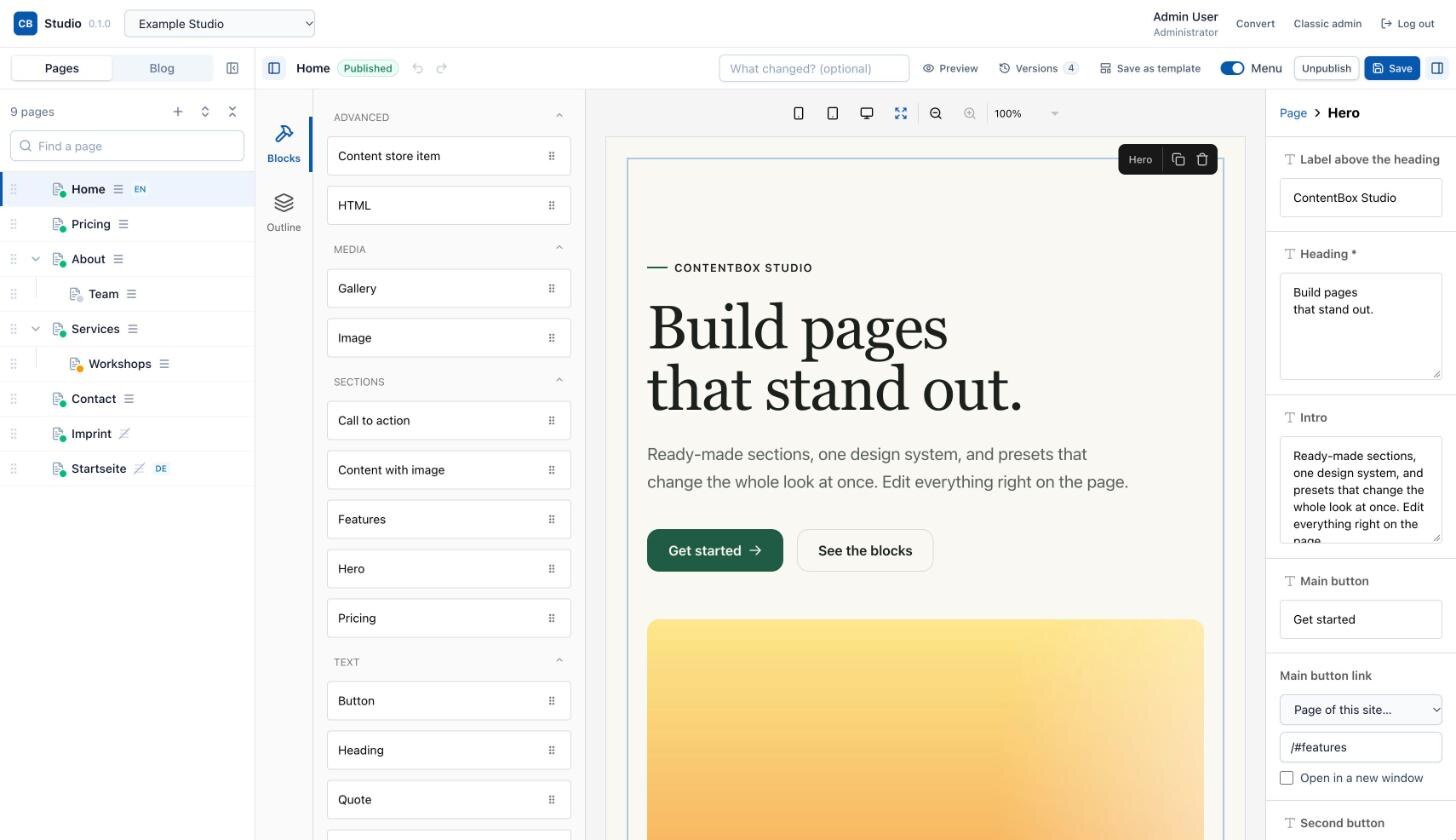
A theme to start with: Studio Starter is a ContentBox theme with ready-made blocks for Studio (hero, content with image, features, pricing, call to action, blog) and switchable design presets, built with Tailwind CSS. The screenshots here show it.
Documentation
| Editing with Studio | Guide for editors: pages, sections, saving, versions, blog |
| Installing, upgrading, removing | Requirements, installation, configuration, upgrades, what removing leaves |
| Blocks in themes | Adding block types to a theme
(block.json, render.cfm) |
| Converting existing pages | Turning hand-written HTML into blocks, on the site or on a copy with a new theme |
| Block format | How blocks are stored in the content body |
| Engine notes | BoxLang and Adobe ColdFusion differences to keep in mind |
| Changelog | What changed in each version |
Goals
- Block editor: pages are built from sections (blocks) that the theme defines, edited as fields with a live preview instead of raw HTML.
- Site tree: drag and drop for order and parent page, status at a glance, translation groups.
- No lock-in: block data is stored as HTML comments inside the normal content body. Existing pages keep working, versions and the API keep working, and uninstalling leaves plain HTML.
- Uses ContentBox's own users, roles and permissions and the ContentBox REST API (JWT).
Requirements
| Supported (tested in CI) | |
|---|---|
| ContentBox | 7 |
| Engine | BoxLang 1, Adobe ColdFusion 2023, Adobe ColdFusion 2025 (no Lucee, like ContentBox 7) |
| Database | what ContentBox 7 supports (CI: MySQL; development: PostgreSQL 17) |
Installation
box install contentbox-studio
Then reinit the site and open Content → Studio in
the classic admin (or /cbstudio); Studio uses the classic
admin login. Release zips, installing from git, configuration,
upgrades and removal: docs/installation.md.
Permissions
Studio adds these permissions when it loads (only if they are missing, so your changes in the admin are kept):
| Permission | Allows | Granted on creation to |
|---|---|---|
STUDIO_ACCESS
| Opening Studio and using its API | Administrator, Editor |
STUDIO_SITE_TREE
| Moving and reordering pages in the site tree | Administrator, Editor |
STUDIO_HTML_BLOCKS
| Adding and editing raw HTML blocks | Administrator |
STUDIO_CONVERT
| Converting the HTML of existing content into blocks,
copying a site for that (also needs SITES_ADMIN) | Administrator |
How it works
-
/cbstudioneeds a classic admin session withSTUDIO_ACCESS; without a session you go through the admin login (including two-factor authentication) and come back. - The page passes JWT tokens for the logged-in author to the React
app, which uses them for the ContentBox REST API
(
/cbapi/v1) and the Studio API (/cbstudio/api). Expired access tokens are refreshed automatically.
Blocks
- A page is a sequence of blocks stored inside the normal content body: each block is an HTML comment with its data, followed by its rendered HTML (block format). Versions, search, the REST API and exports keep working; on the public site Studio removes the comments.
- Block types come from Studio (HTML, text, heading, image, gallery, button, quote, content store item), from the site's theme and from other modules (theme blocks). For a theme with ready-made blocks, see Studio Starter.
- The server renders blocks when they are saved. Rich text is stored
as a structured document and rendered by the server, so it cannot
carry arbitrary HTML; raw HTML needs the
HTMLblock and theSTUDIO_HTML_BLOCKSpermission. - In the classic admin, block content shows a notice with a link to Studio and its body is read-only; saving there keeps the blocks and changes only the other settings.
Site tree
-
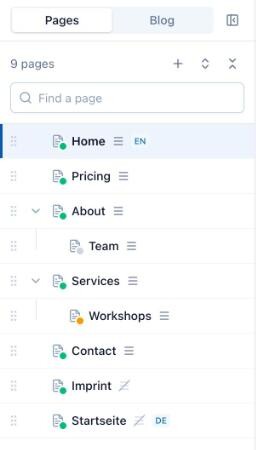
/cbstudioopens the editor right away: on the site last worked on, the page or blog entry last edited there (remembered per browser), else the site's home page;?site=<slug>picks a site. A site without pages offers to create the first one. Switching sites asks about unsaved changes first. - Next to the editor, a column shows the pages of the site as a tree: status as a colored dot (its name on hover), a menu icon (struck through when the page is not in the site's menu) and the language. Search keeps matches in place. Tabs switch between the pages and the blog (see Blog).
- Drag the column's edge to resize it (double-click resets; wide enough, it shows the addresses) or hide it to a narrow strip. Width, visibility and the tab are remembered per browser.
- Drag and drop moves and reorders pages; it needs
STUDIO_SITE_TREEandPAGES_ADMINorPAGES_EDITOR. Drop onto a page to make it a subpage, or on its top or bottom edge to place it before or after (the bottom edge of an open page makes it the first subpage); a line shows where it lands, collapsed pages open when you hover them, and a zone below the tree moves a page to the top level. Moving changes the address of the page and its subpages; ContentBox redirects the old ones. -
New page (or the + of a page for a subpage) creates
a draft with a title, address and parent, empty or from a template,
and opens it in the editor. Needs
PAGES_ADMINorPAGES_EDITOR. -
Translation groups: pages and blog entries of a
site in different languages can be linked (only within the site:
each site has its own content). Each page gets a language code; the
public pages get
hreflanglinks, and themes can build a language switcher fromgetInstance( "Translations@contentbox-studio" ).forContent( prc.page ).members. Stored as the custom fieldscbstudio_languageandcbstudio_translationGroup.
Blog
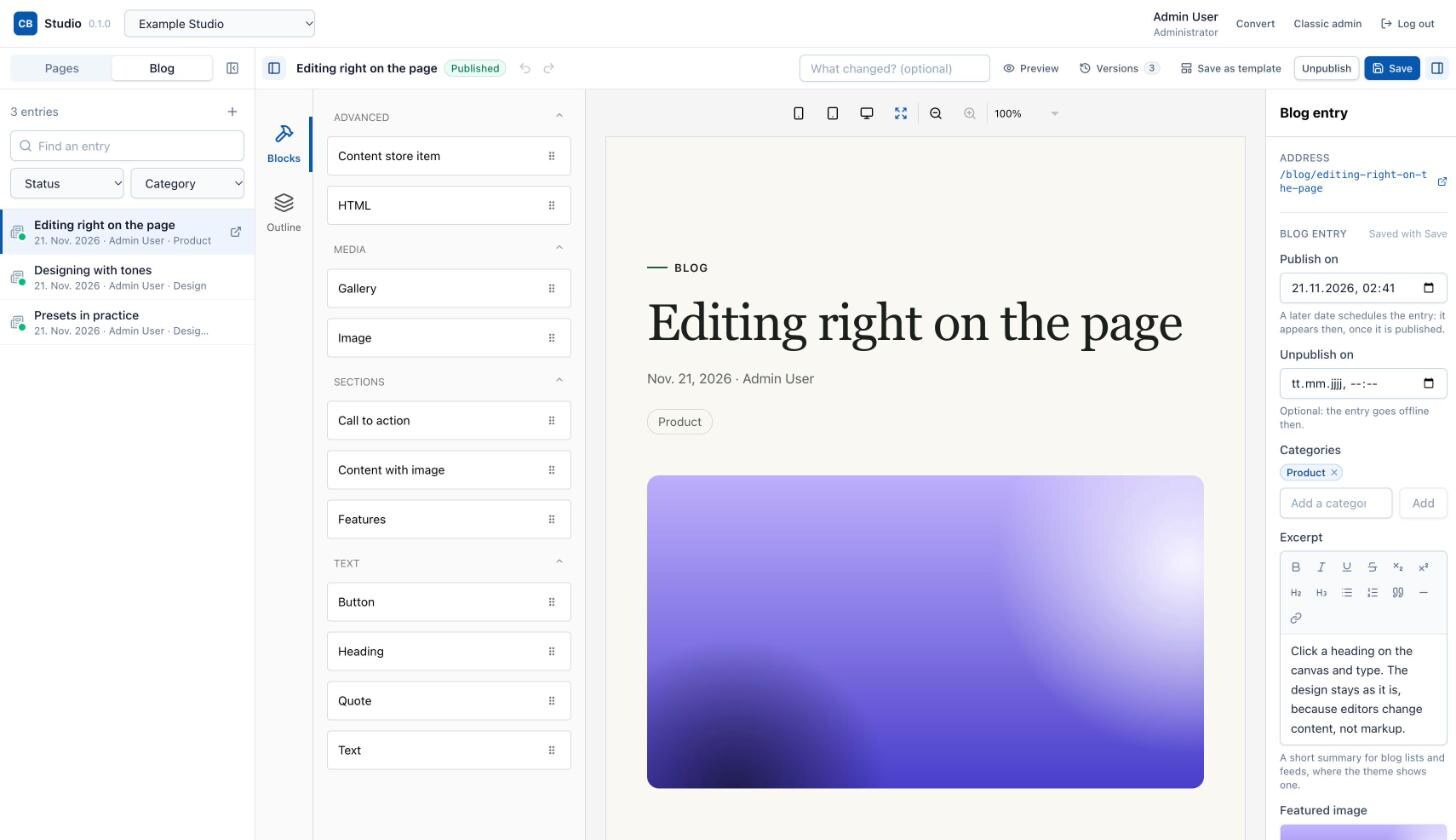
- The Blog tab lists the site's entries newest first, drafts, scheduled and expired ones included, with date, author, categories, status and language. Search (title or address) and filters for status and category (or no category); long blogs load 50 more at a time.
- Clicking an entry opens it in the same block editor as pages. Opening an entry or a page switches the column to the matching tab.
-
New entry creates a draft with a title and address,
empty or from a content template for entries (the default template
is preselected). Needs
ENTRIES_ADMINorENTRIES_EDITOR. - Theme blocks can be limited to some content types
(
contentTypesinblock.json), e.g. so a page hero is not offered in posts. - An entry's own settings are in the editor's right column and saved with Save: publish date (a later one schedules it), optional unpublish date, categories (pick one or type a new name; new ones are created on save), excerpt (rich text, stored as HTML like ContentBox does), featured image (media library) and comments.
- When a site's blog is turned off (ContentBox site settings, Enable Blog), the Blog tab is disabled and the API refuses new entries for that site, as the classic admin does. Entries that already exist can still be opened by their address.
- Comment moderation, managing categories and the blog's settings stay in the classic admin.
Editor
-
Opening a page, blog entry or content store item from the tree loads it into the block editor (Puck): add, move, duplicate and remove blocks; fields on the right. The canvas shows each block rendered by the server with the theme's template, so it is what will be saved.
-
Text, headings and running text of a block can be edited directly in the canvas (fields of type text, textarea and rich text that the template shows unchanged). Rich text gets a formatting toolbar above it (bold, italic, subscript, superscript, headings, lists, links, ...) and keeps the theme's look while editing; Esc or a click elsewhere ends editing. Everything else is edited in the fields on the right.
-
Field types get suitable inputs: rich text (TipTap, stored as a structured document), links with a page picker (
page:[slug], resolved by ContentBox), images and galleries from ContentBox's media library (with upload), content store items, lists of sub-fields, and HTML (only withSTUDIO_HTML_BLOCKS). The media library opens in the folder of the image in use (marked "In use"); for a gallery, in the folder of its last image. -
Save stores a new ContentBox version (with an optional change note); history and rollback in the classic admin keep working. A save based on an older version than the current one is refused, so nobody overwrites someone else's changes unknowingly.
-
The canvas loads the stylesheets of the site's theme (the
<link rel="stylesheet">tags of the site's home page, plus the theme'sblocks/editor.cssif it has one), so blocks look like on the site. -
Undo/redo, a Menu switch for pages (whether the page shows in the site's menu; saved with Save, and changing it clears ContentBox's cached pages, since the menu is on every page), Publish/Unpublish (
PAGES_ADMIN,ENTRIES_ADMINorCONTENTSTORE_ADMIN, as in the classic admin: editors can save but not publish; the server enforces it. Unlike the classic admin, an editor's save of published content keeps it published, so the change is live at once) and the status (draft, scheduled, published, expired) are in the editor's header, as are buttons to hide the blocks and fields columns. Undoing every change clears the unsaved marker. -
The canvas shows the page in a viewport (Small 360 px, Medium 768 px, Large 1280 px, Full width), scaled down to fit; it never zooms beyond that. Full width shows it at 100 % at the canvas's own width. The viewport and the hidden columns are remembered per browser.
-
For blog entries, the canvas shows the entry's header above the blocks as the theme renders it on the site (title, date, author, categories, featured image; see Blocks in themes). It follows the entry settings as they are edited, and the title is edited right there, saved with Save (the address stays).
-
With no block selected, the right column shows the content's settings: address, a blog entry's settings (see Blog), search engine fields (title, meta description and keywords, with length hints and a collapsible preview of the search result with the full address), language (needs
STUDIO_SITE_TREE), translations, and a link to the other settings (layout, ...) in the classic admin. Everything but the translation links is saved with Save, like the blocks. -
After saving, publishing, creating, moving or linking translations, Studio announces ContentBox's
cbadmin_post<Type>Saveevents like the classic admin: ContentBox clears its content, page, sitemap and RSS caches, updates menu items that point to a moved page, and sends its notifications for new pages and entries (if they are on in ContentBox's settings, also for content created in Studio); other modules can listen too. -
Save only adds a version when the blocks changed; saving only settings keeps the version (ContentBox does not version them).
-
Opening other content with unsaved changes asks first.
-
Preview renders the unsaved blocks with the site's theme and layout through ContentBox's own preview.
-
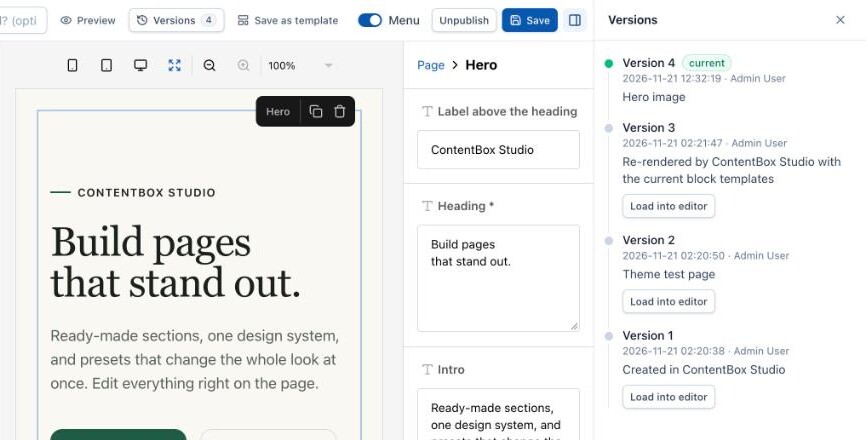
Versions lists the history; loading a version puts its blocks into the editor, saving makes it current.
-
Save as template stores the saved blocks as a ContentBox content template; new content of the same type can start from it (block presets). Marked as the default, it becomes ContentBox's global template of the type and is preselected for new pages or entries. Templates are also listed in the classic admin.
-
Content written in the classic editor opens as one HTML block; blocks changed outside Studio are pointed out.
Converting existing pages
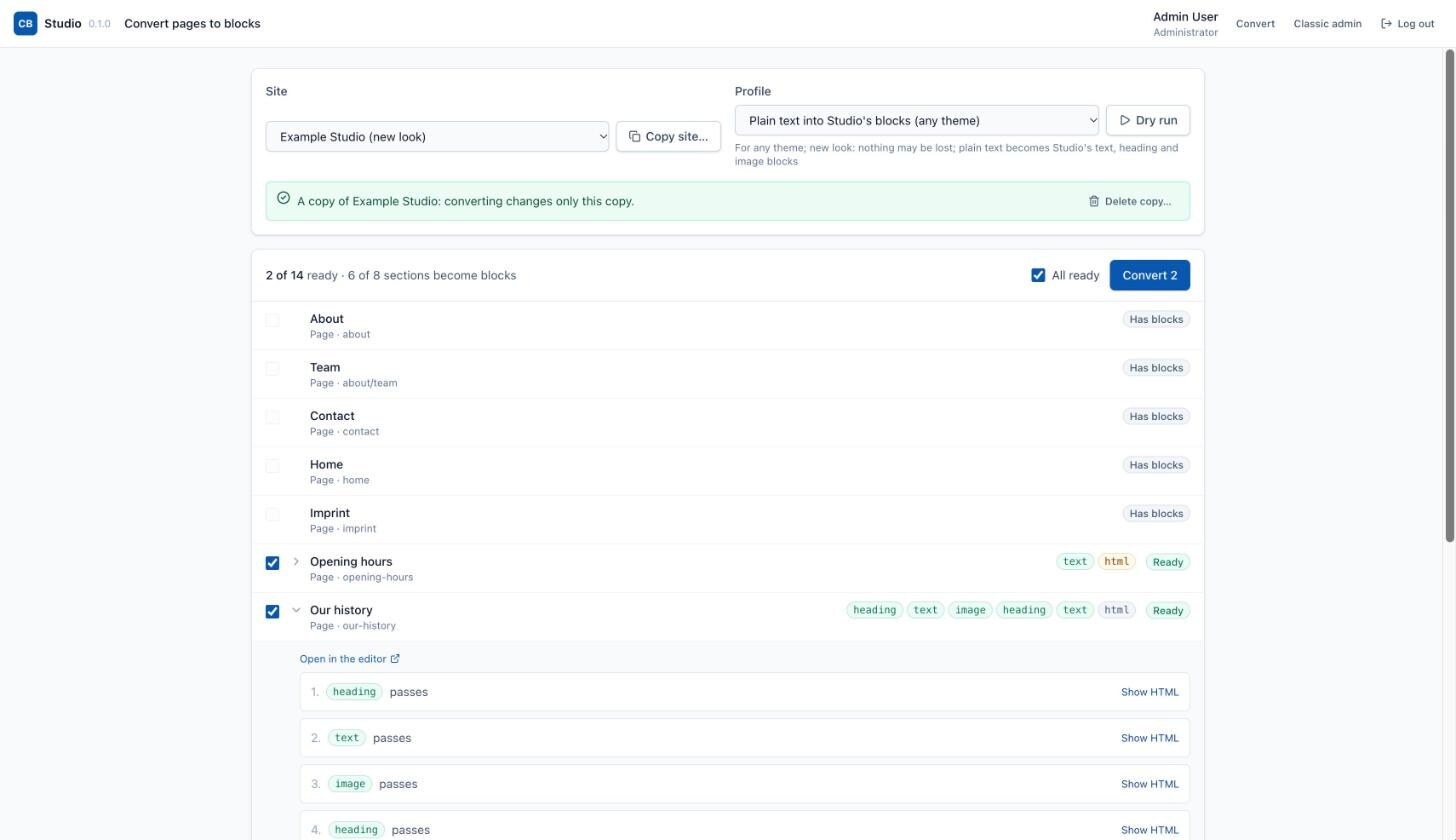
Existing pages are hand-written HTML and open as one HTML block. The conversion tool turns them into blocks with a conversion profile (CSS selectors per block field, or code for complex sections), page by page and only where nothing is lost: each block is rendered and compared with the section it replaces. For a new look it works on a copy of the site with another theme, so the original stays as it is. Plain text (paragraphs, headings, lists, images) can become Studio's own text, heading and image blocks without writing a profile (built-in profile "plain-text"). Convert in Studio's header (administrators) opens the tool: copy a site, pick a profile, see per page and section what becomes a block and what differs, convert the pages that are ready. See docs/conversion.md.
Settings
In config/ColdBox.cfc of the site, moduleSettings[
"contentbox-studio" ]:
| Setting | Default | |
|---|---|---|
coreBlockStyles
| true
| Links includes/blocks.css (base styles of
the core blocks) on public pages with blocks and in the editor
canvas. Its selectors have no specificity, so theme rules always
win; set it to false if the theme styles the core
blocks completely. |
hreflangLinks
| true
| Adds hreflang links for translated pages and
entries to public pages. Set it to false if the
theme writes its own, e.g. from canonical URLs, with
getInstance( "Translations@contentbox-studio"
          ).forContent( page ).members
. |
devServer
| CBSTUDIO_DEV_SERVER
| See Development. |
Development
The module is developed inside a ContentBox 7 site, linked as modules_app/contentbox-studio.
Code layout:
| Path | What |
|---|---|
ModuleConfig.cfc, handlers/, views/
| The /cbstudio page (serves the app) and the
classic admin integration |
modules/contentbox-studio-api/
| The Studio API at /cbstudio/api: routes and
thin handlers only |
models/
| All logic: blocks/ (format, registry,
renderer), tree/ (site tree, status, translations),
blog/, editor/ (save, versions, media,
theme styles), convert/ (conversion tool, site copy) |
blocks/, includes/, interceptors/
| Core block types, their CSS, block output on the public site and the classic admin guard |
ui/ → dist/
| The React app (Vite, Puck, TipTap) and its build, which the module serves |
tests/, docs/
| TestBox specs and fixtures; block format, theme blocks, conversion, engine notes |
The API is a submodule because cbsecurity has one firewall per
module, and the two parts authenticate differently: the page needs the
classic admin session and redirects to the admin login, the API checks
JWT tokens (the same ones as /cbapi/v1) and answers
401/403 as JSON. ContentBox splits its admin and its REST API the same
way (contentbox-admin, contentbox-api).
cd ui
npm ci
npm run build        # builds the app into dist/, which the module serves
npm test             # Vitest
npm run typecheck
-
Hot reload: set
CBSTUDIO_DEV_SERVER=http://localhost:5173in the site's.env, restart the server, runnpm run devinui/and open/cbstudio. -
CFML tests (TestBox): open
/modules_app/contentbox-studio/tests/runner.cfmon the site. They reuse ContentBox's test application (tests/Application.cfcof a ContentBox source checkout) and the ORM dialect fromORM_DIALECT. - Engine pitfalls: see docs/engine-notes.md.
-
CI (
.github/workflows/ci.yml): UI checks, then the TestBox suite in a ContentBoxdevelopmentcheckout with its MySQL fixture on BoxLang 1 and Adobe ColdFusion 2023/2025. -
Releases
(
.github/workflows/release.yml): set the version inbox.jsonand a section for it inCHANGELOG.md, commit, then push a tagv<version>(e.g.v0.1.0). The workflow runs CI, builds the editor, packscontentbox-studio-<version>.zip(withdist/, withoutui/,tests/and.github/), creates the GitHub release with that zip and the changelog section, and publishes the version to ForgeBox with the zip as its location. It needs the repository secretFORGEBOX_API_TOKEN.
License
Apache License 2.0, see LICENSE.
Changelog
All notable changes to ContentBox Studio. The format follows Keep a Changelog, versions follow Semantic Versioning. Upgrading: see docs/installation.md.
0.1.3 - 2026-11-21
Fixed
- Editing in place in the editor canvas: a click on the editable text of a form label moved the cursor into the label's input instead (e.g. the signup label of the Studio Launch theme). A click into editable text now only edits it: links around it are not followed and submit buttons do not send their form.
0.1.2 - 2026-11-21
Fixed
- After activating another theme or saving theme settings (e.g. another design preset), the editor canvas showed the previous stylesheets for up to 10 minutes. They are now cached per theme and cleared on both events, together with ContentBox's cached pages they are read from.
0.1.1 - 2026-11-21
Fixed
- Images and links of the readme also work on ForgeBox (absolute addresses).
0.1.0 - 2026-11-21
First release.
Added
- Block editor (Puck, TipTap) for pages, blog entries and content store items: sections from the theme and Studio's core blocks (text, heading, image, gallery, quote, button, content store item, HTML), fields with media library, page picker and rich text, text edited directly on the page, undo/redo, phone/tablet/laptop/full-width views, preview with the site's layout. The canvas uses the theme's stylesheets, so blocks look as on the site.
- Versions as ContentBox versions with change notes; loading an older version; saves based on an outdated version are refused.
- Site tree next to the editor: status, menu and language at a glance, search, drag and drop to move and reorder (old addresses redirect), new pages from content templates, resizable and collapsible.
- Blog in the same editor: entry list with search and filters, new entries, entry settings (publish and unpublish dates, categories, excerpt, featured image, comments), the entry's header on the canvas with its title edited in place.
- Translation groups of pages and entries within a site, with
hreflanglinks on public pages. - Search engine fields (title, description, keywords) with a preview of the search result.
- Publish/unpublish with ContentBox's permissions (editors save, publishers publish), a menu switch for pages, Save as template (block presets for new content).
- Theme blocks: themes add block types in
blocks/(block.json+render.cfm), optionalblocks/editor.cssand a header template for blog entries; see docs/theme-blocks.md. - Conversion tool (
/cbstudio/convert): existing HTML into blocks with conversion profiles, dry run with a check per section (same markup, or nothing lost for a new look), a copy of a site with another theme to convert without touching the original, deleting such copies, and a built-in profile that turns plain text into Studio's text, heading and image blocks; see docs/conversion.md. - Classic admin integration: Content → Studio in the admin menu, a notice in the classic editor for content with blocks, and the block data kept when such content is saved there.
- Permissions
STUDIO_ACCESS,STUDIO_SITE_TREE,STUDIO_HTML_BLOCKS,STUDIO_CONVERT, created on first start. - Studio announces ContentBox's save events, so caches, menus, sitemap and notifications behave as with the classic admin.
- Tested on BoxLang 1 and Adobe ColdFusion 2023 and 2025.
-
Akitogo Team
- Published
-
0.1.3 is the latest of 4 release(s)
Published
- Published on {{ getFullDate("2026-11-21T11:43:53-06:00") }}
-
-
 Apache2
- akitogo/contentbox-studio

Use It
								$
									box install contentbox-studio
Collaborators 0
Stats
- {{ getFullDate("2026-11-21T07:18:45-06:00") }}
- {{ getFullDate("2026-11-21T11:43:53-06:00") }}
- 46
- 11